Ksama Arora
Create Machine Learning Workspace in Azure - Lab 1
- Everything in Azure goes into a resource group
- Create Azure ML Workspace: Save configuration/template of workspace if needed for future use.
- Application Insights, Key Vaults, and Storage account created: Ensure these are set up for your workspace.
- Go to Azure ML Studio
- Create Compute Instance (VM) for notebook to run
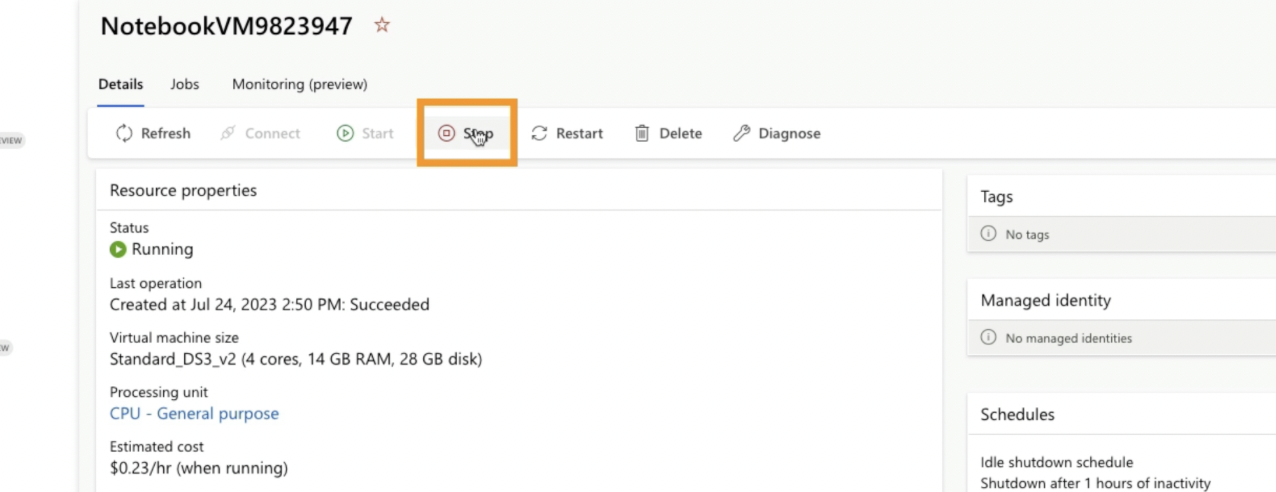
- Stop VM
DETAILED STEPS:
Step 1:
- Got to Azure Machine Learning and create a new ML Workspace
- Save configuration/template of workspace using Azure Resource Manager (ARM) by clicking on download button if needed for future use
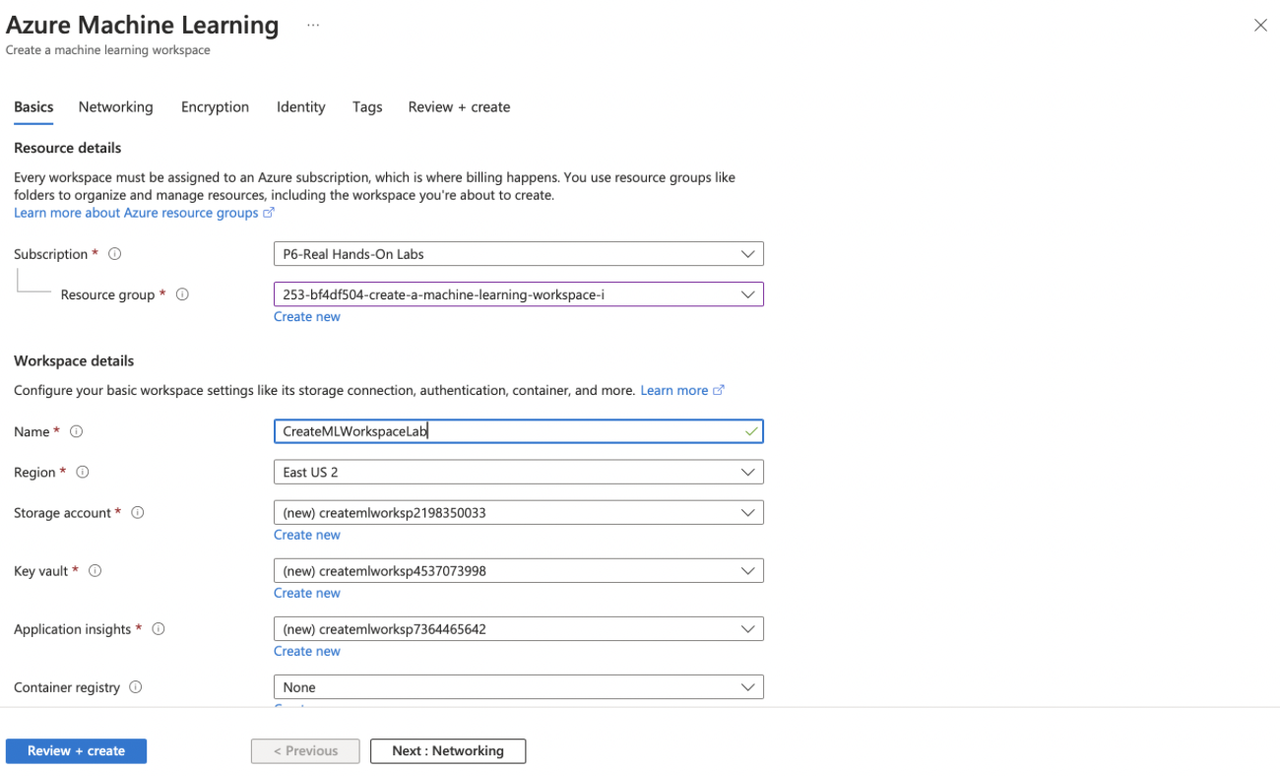
Step 2:
- Once deployment is complete, go to our resource and check the Key Vault and Application Insight that has been created. Now go to Azure ML Studio

Step 3:
- Now in the ML Studio, create some compute VM
- To power a notebook we will create a compute instance.
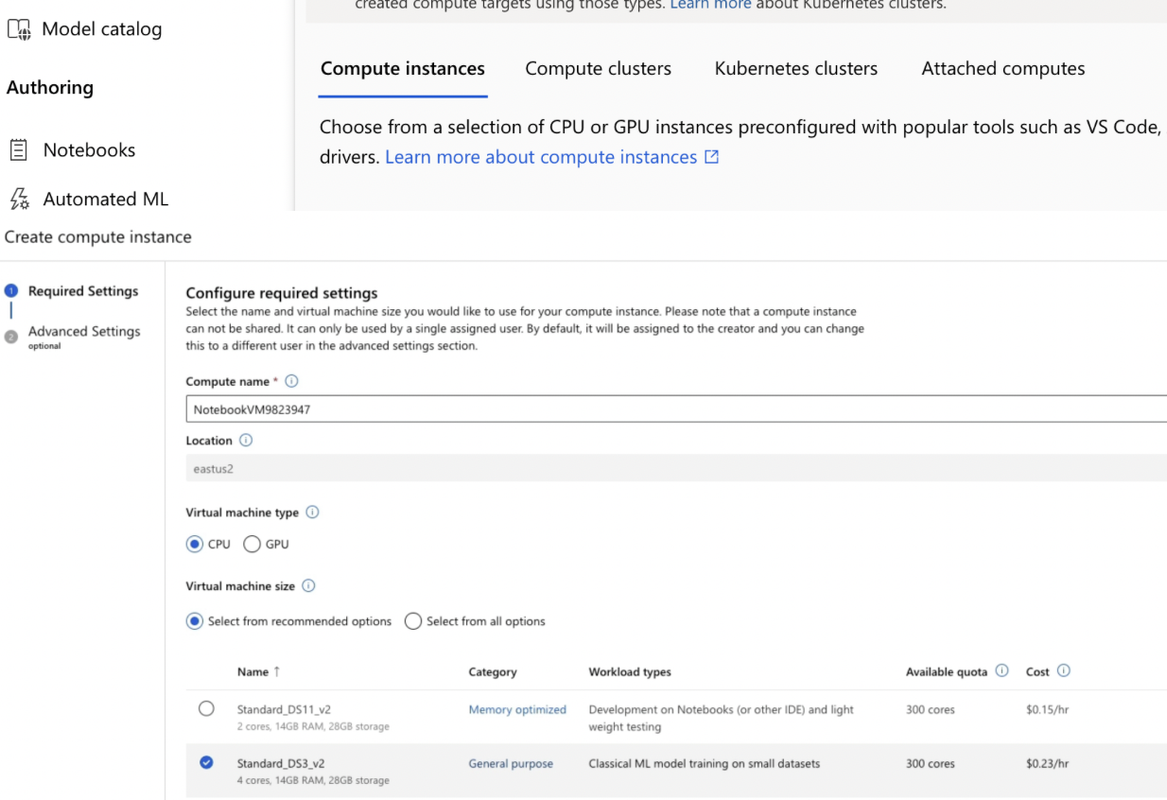
Step 4:
- To test the compute we will create a jupyter notebook
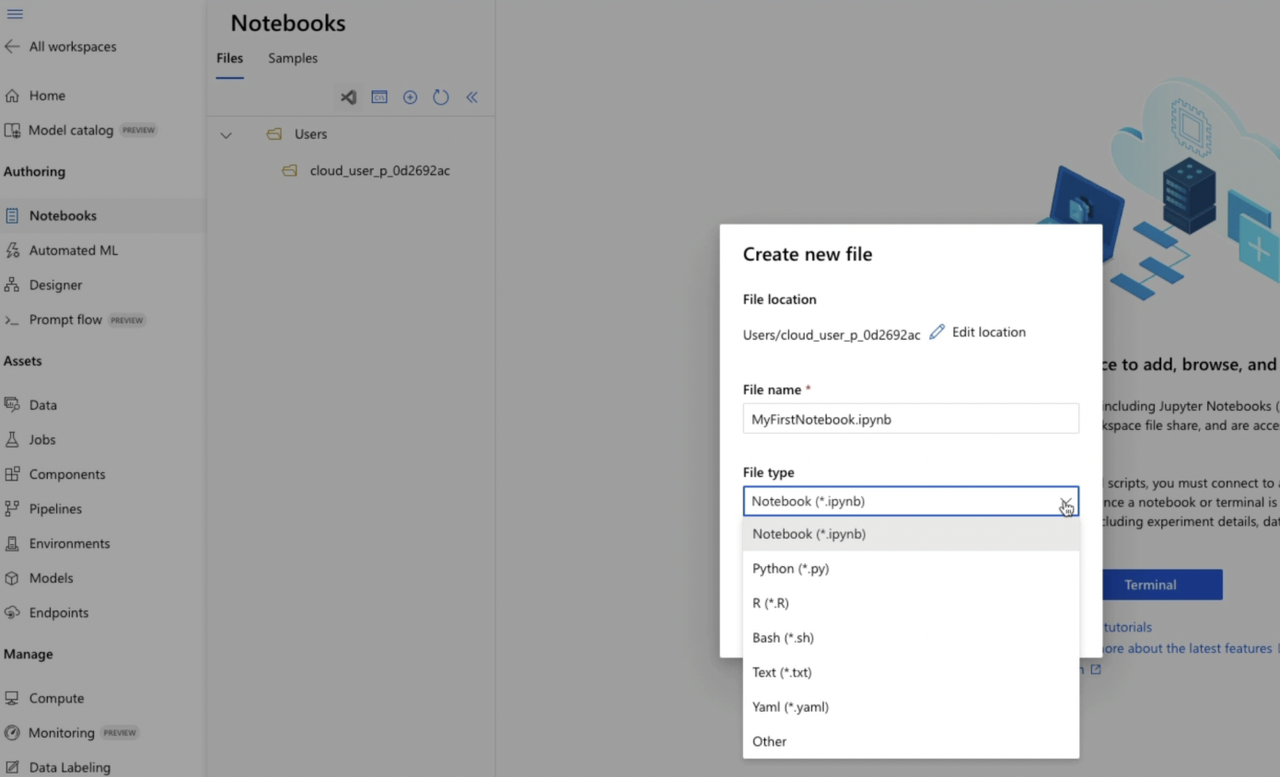
Step 5:
- Test a program. We will use Azure ML Kernel as it has all the tools installed
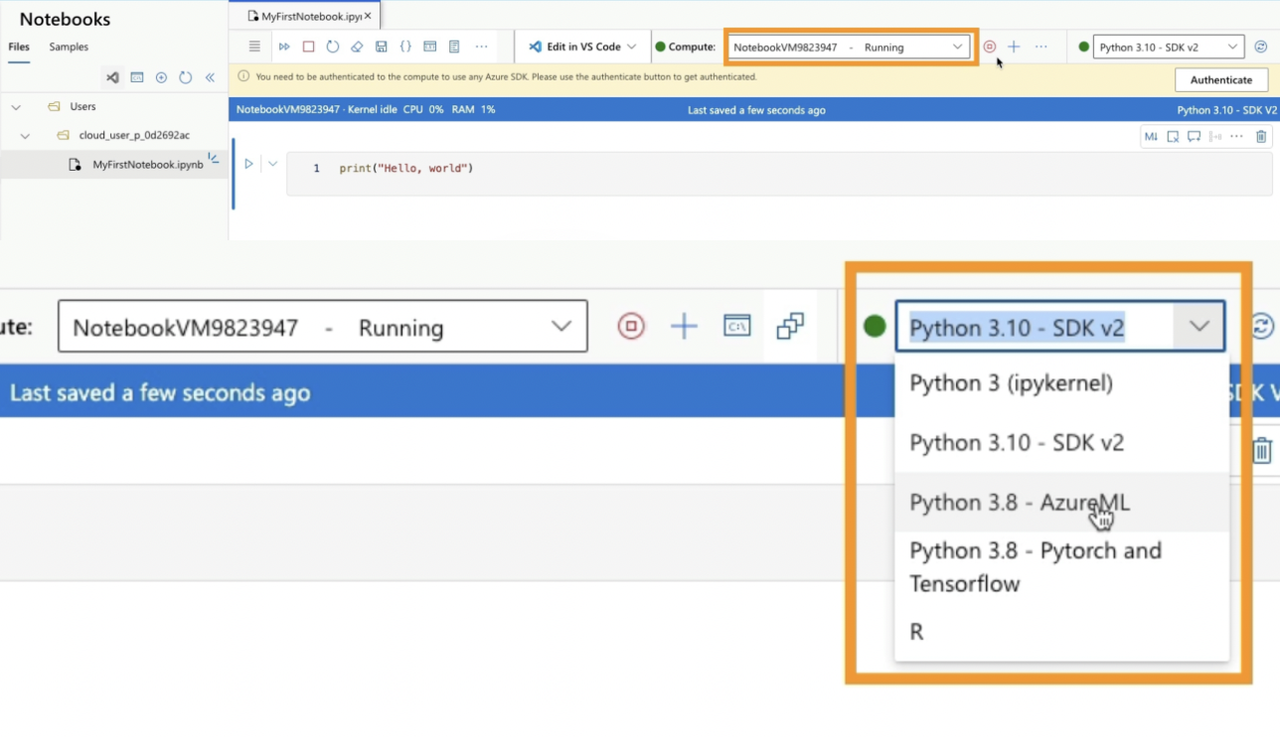
Step 6:
- Remember to stop the virtual machine after use to avoid unnecessary charges.